"The pixel isn't tracking" can mean three different problems: events not firing at all, events firing but not attributed, or events firing too often. Identify which one you have first, then fix it.
Step 1: Confirm the Pixel Is Firing
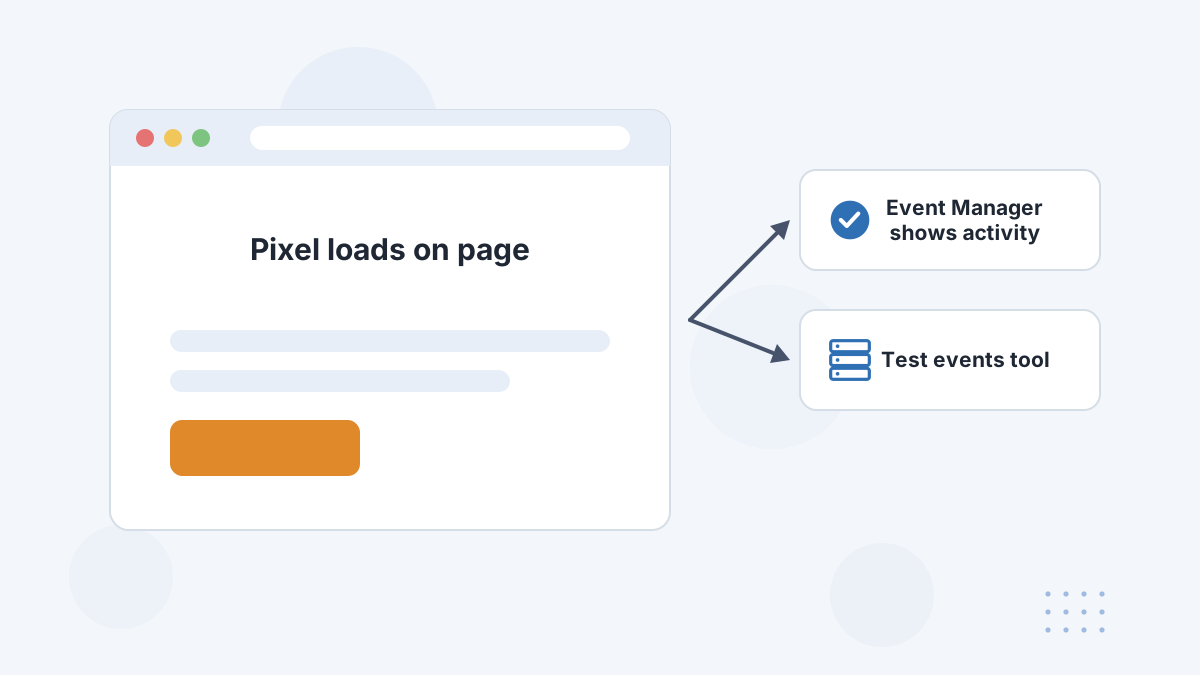
- Install Meta's Pixel Helper browser extension and load your key pages.
- Open Events Manager and check recent activity for each event.
- Use the Test Events tool to watch events arrive as you browse your own site.
If nothing fires, the pixel code is missing, blocked by a script error, or not published. Check your platform's integration or tag manager setup.
Step 2: Check Each Event Fires Once, in the Right Place
- Purchase should fire only on the order confirmation page, once per order.
- Lead should fire on genuine form submission, not page load.
- Refresh test: reload the thank-you page. If Purchase fires again, you're double counting.
- Value and currency should be included on purchase events.
Misplaced events are the most common reason Meta reports purchases that never happened.
Step 3: Check for Duplicate Pixels
Multiple pixels, or the same pixel installed twice (once by a theme and once by an app, for example), split or double your data. Pixel Helper will show more than one pixel or duplicate events.
Remove duplicates so each event is sent once per pixel.
Step 4: Add the Conversions API With Deduplication
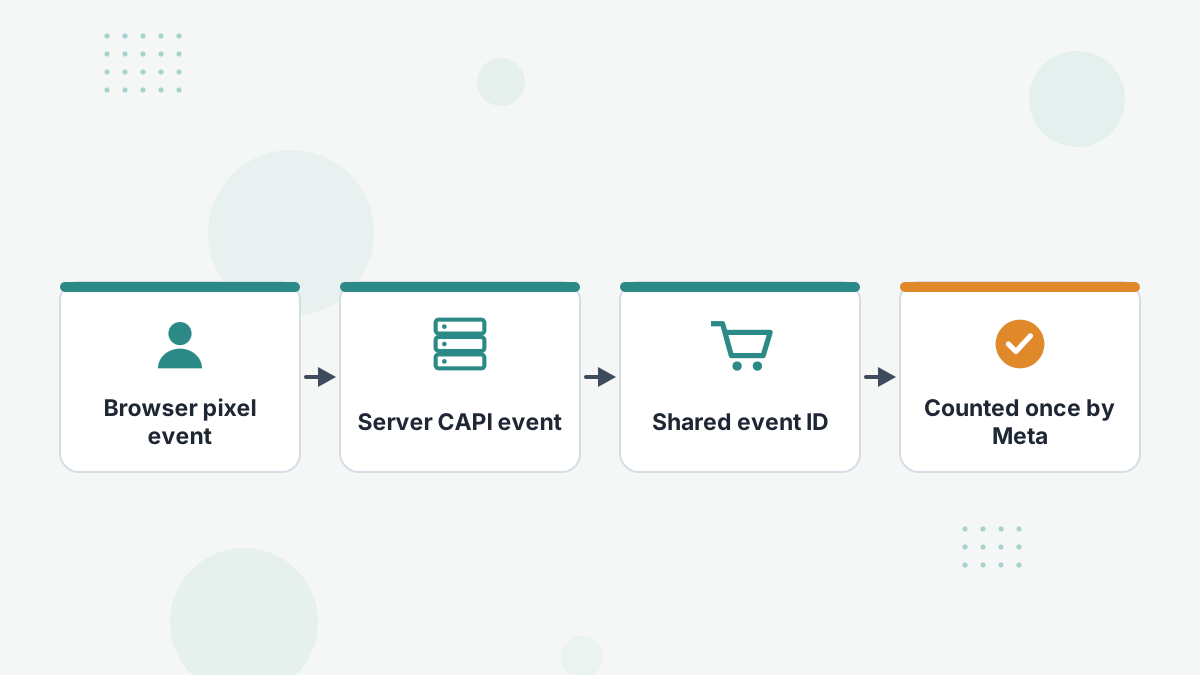
The Conversions API sends the same events from your server, recovering conversions the browser pixel misses. But if you send both without deduplication, Meta counts the sale twice.
Make sure both the pixel and server event share the same event name and event ID, so Meta can match and deduplicate them. See our Conversions API guide.
Step 5: Improve Event Match Quality
Events Manager shows an event match quality score for server events. It reflects how many customer identifiers you send, such as hashed email, phone, name and location, plus browser identifiers and click IDs where available.
Higher match quality means Meta can tie more conversions to the people who saw your ads. Send the identifiers you have, with consent.
Step 6: Check Domain and Settings
- Confirm your domain is verified in Business Settings.
- Make sure the pixel connected to your ad account is the one on your site.
- Check your ad sets optimize for the event you actually fire.
Step 7: Accept What You Can't Fix
Even a perfect setup won't capture everything. Privacy settings, consent choices and purchases on other devices or offline mean some sales will never reach the pixel. Meta fills some gaps with modeling.
For a complete view, compare Meta's numbers against real revenue, or use an independent tracker. See Facebook attribution problems.
Facebook Pixel FAQs
Why does the pixel show purchases with no orders?
Usually the Purchase event fires on the wrong page or on refresh, or view-through credit is counted.
Why are conversions missing after iOS updates?
Opt-outs, ad blockers and privacy features stop some browser events. Add the Conversions API.
How do you stop duplicate conversions?
Share the same event ID between pixel and server events, and remove duplicate pixels.
What is a good event match quality?
Higher is better; improve it by sending more hashed customer identifiers with consent.
Get Meta Data You Can Trust
Book a Hyros demo to see your real sales matched to Facebook ads and sent back to Meta.
Book a Hyros Demo