Calendly is one of the most common schedulers in coaching, consulting and B2B funnels. Hyros connects to it natively, and the setup includes one Calendly setting that's easy to miss. Here's the full process from Hyros's documentation.
What the Calendly Integration Does
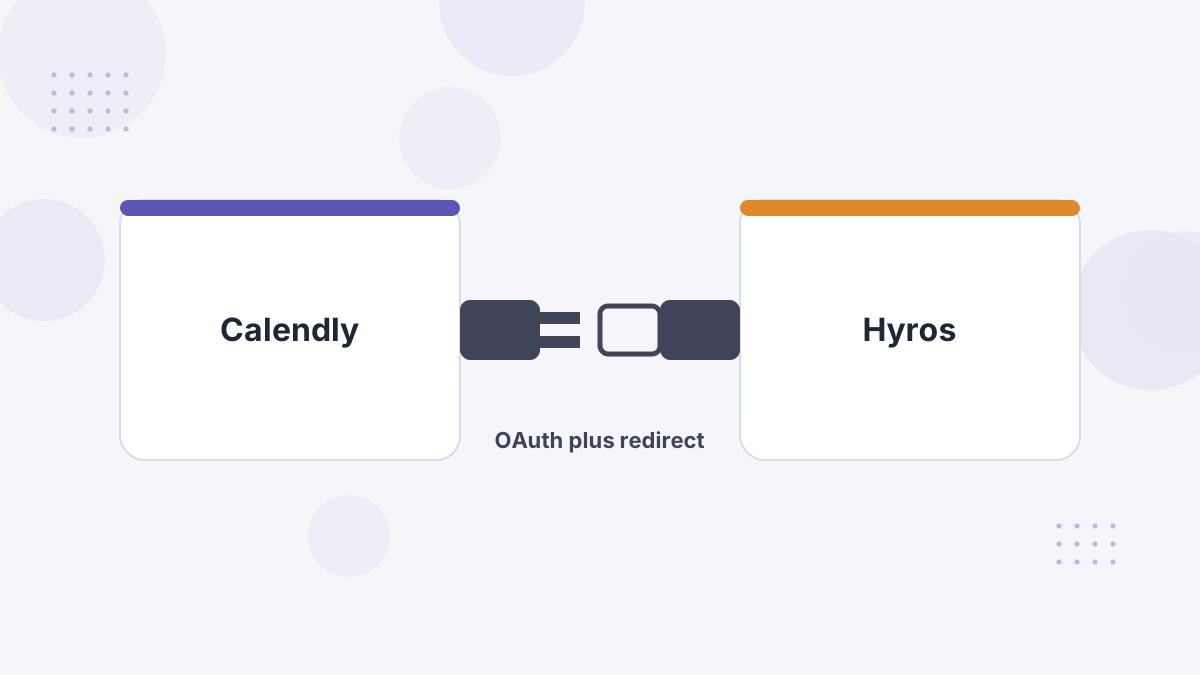
The integration logs each booking in Hyros as a call event tied to the lead. Because the lead's email is passed along, Hyros can match the booking to their original ad, even if they first clicked days earlier.
That's the foundation for cost per booked call by ad, and for later show-up and close tracking. See Hyros call tracking.
What You Need Before You Start
- A Calendly plan that supports redirects. Hyros's guide notes the redirect option requires Calendly Standard, Teams or Enterprise; Basic may need an upgrade.
- The Hyros universal script on your booking page and thank-you page.
- A thank-you page you control.
Step-by-Step Setup
- Create the integration. In Hyros, go to Settings, then Integrations, then Calendly, create a new integration and authorize through the OAuth popup.
- Install the script in the head of your booking page and thank-you page if it isn't already there.
- Set the redirect. In Calendly, set your event's confirmation page to redirect to your thank-you page.
- Enable "Pass Event Details" so the lead's email and phone are added to the redirect URL.
- Choose which events to track. All Calendly call events are tracked by default; you can limit it to specific events.
- Remove the Automatic Call Rule in Hyros to avoid duplicate call tracking, as the guide recommends.
What Gets Tracked
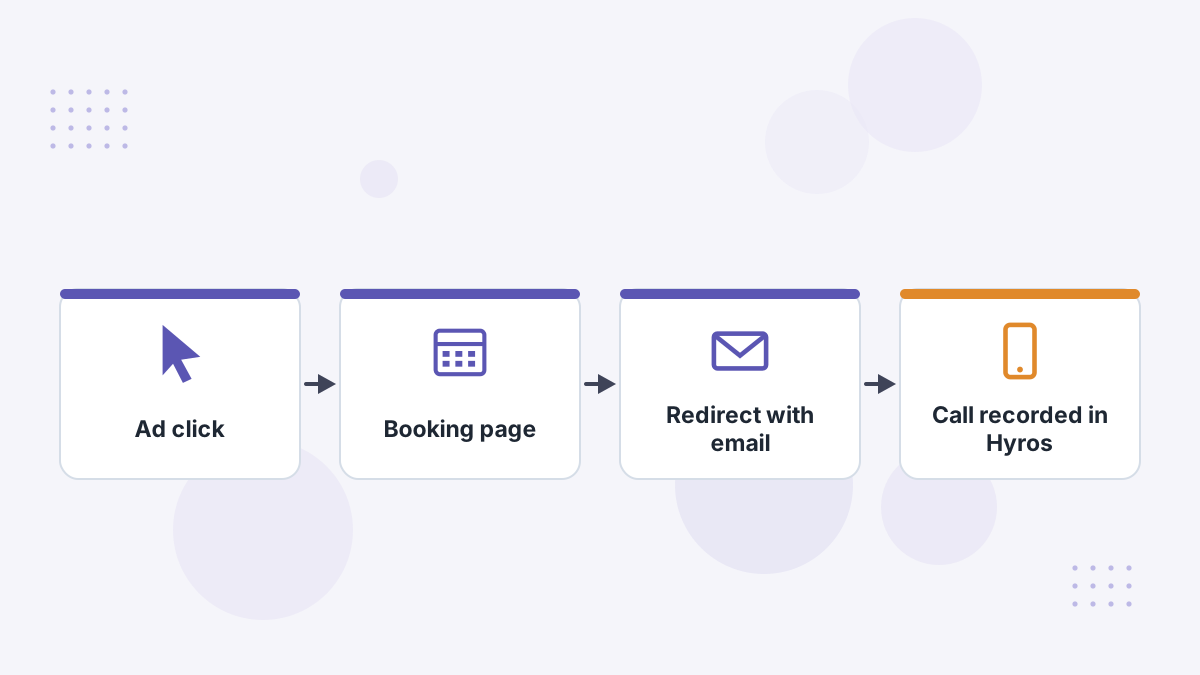
Bookings appear in Hyros as Call events linked to the lead. With your CRM or close source connected too, you can follow each booking through to show-up and close, all credited to the ad.
Testing Your Setup
- Make a test booking through your Calendly event.
- Confirm you're redirected to your thank-you page with an email parameter in the URL.
- Check Reporting, then Incoming Leads in Hyros for the call within a few minutes.
Common Problems and Fixes
- No email in the URL: "Pass Event Details" isn't enabled, or your plan doesn't support redirects.
- Duplicate calls: the Automatic Call Rule is still active.
- Calls not matched to ads: the script is missing from the booking or thank-you page.
- Wrong events tracked: limit tracking to your sales call event types.
Hyros Calendly FAQs
Which Calendly plan is needed?
Hyros's guide says the redirect option needs Standard, Teams or Enterprise.
Why redirect to a thank-you page?
The redirect passes the lead's email so Hyros can match the booking to their journey.
How do bookings appear in Hyros?
As Call events, visible in Reporting under Incoming Leads.
Can you track only some Calendly events?
Yes. All are tracked by default, but you can limit it to specific events.
Know Which Ads Book Your Best Calls
Book a Hyros demo and see Calendly bookings tied back to the campaigns that drove them.
Book a Hyros Demo